> ## Documentation Index
> Fetch the complete documentation index at: https://docs.contactship.ai/llms.txt
> Use this file to discover all available pages before exploring further.
# Identity
🕵️♂️ Set the identity of your agent. Give it an identity according to your needs.
### Steps to Configure Agent Identity
1. **System Agent Name**: This name will be used to identify the agent on the platform.
* Example: `Sales Agent #1`
2. **Call Agent Name**: Name of the agent on calls.
* Example: `Alex`
3. **Select Voice**: Select the voice you want the agent to use during calls.
* Example: `Max`
4. **Select Language**: Choose the language the agent will use to communicate.
* Example: `Spanish (Latin America)`
5. **Ambient Sound**: Select the ambient sound you prefer to hear in the background during calls.
* Toggle the switch to enable or disable.
6. **Interruption Sensitivity**: If the interruption is active, the agent could be interrupted by the user. If not, the agent will speak all his line without being stopped by the user.
* Toggle the switch to enable or disable.
### Example Configuration
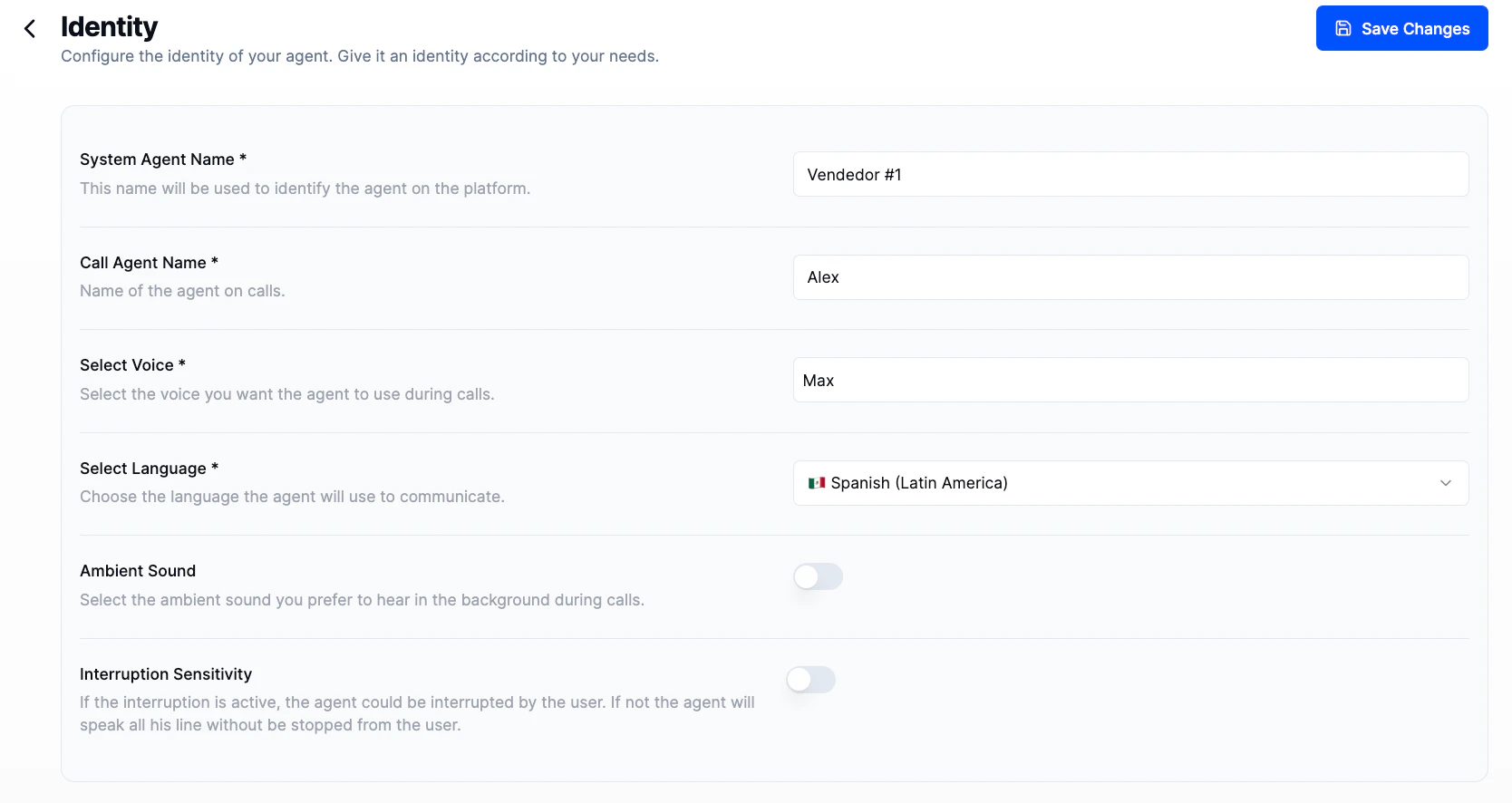
Here is an example of how you might configure your agent:
* **System Agent Name**: `Vendedor #1`
* **Call Agent Name**: `Alex`
* **Select Voice**: `Max`
* **Select Language**: `Spanish (Latin America)`
* **Ambient Sound**: Disabled
* **Interruption Sensitivity**: Disabled
 ### Save Changes
Once you have configured the identity of your agent, click the **Save Changes** button to apply the settings.
### Save Changes
Once you have configured the identity of your agent, click the **Save Changes** button to apply the settings.